1. Export a TXT marker file from Adobe Prelude Live Logger
In the Adobe Prelude Live Logger app go to export and save the TXT file.
2. Use the "Marker átalakító" to convert the TXT marker file into a CSV file
Open the free Marker átalakító, select "Adobe Prelude Live Logger > Marker (.txt)" and set "convert" to "CSV for Google Sheets". Generate and download the file. Ha problémája van a fájl konvertálásával, forduljon ingyenes ügyfélszolgálatunkhoz.
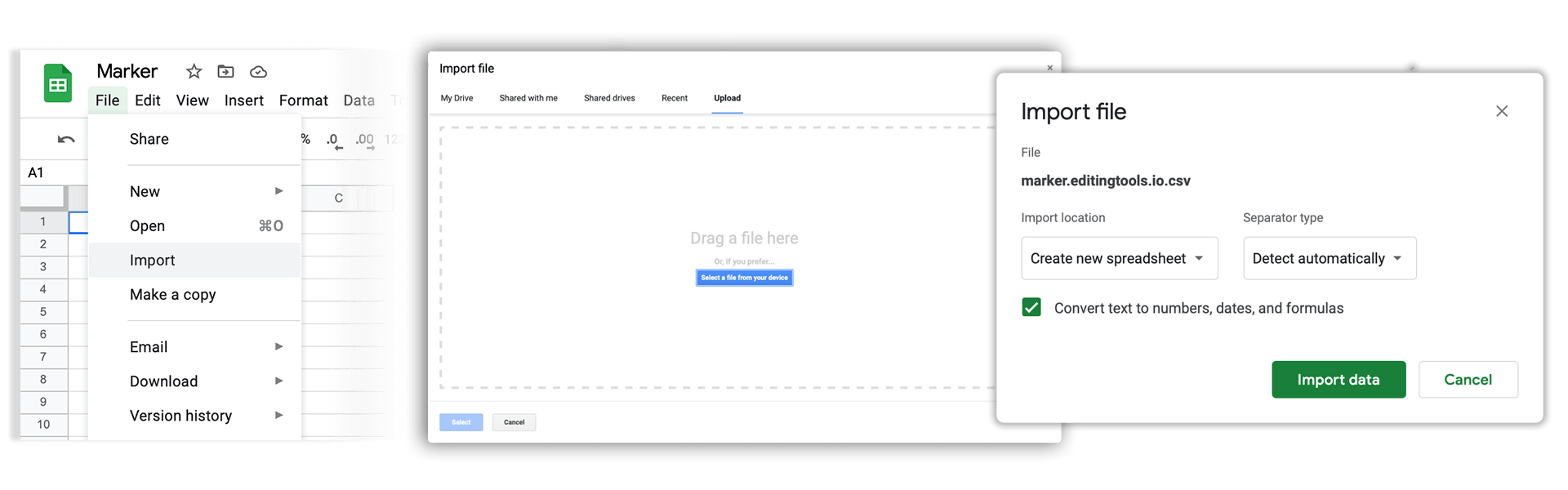
3. Import the CSV file into Google Sheets
Open Google Sheets and go to "File -> Import". Upload the generated CSV file and press "Import Data" to generate the Sheet with all markers.
🚀 Kész
Egyelőre ennyi! Ha hasznosnak találta ezt az útmutatót, kérjük, ossza meg, hogy támogasson minket. Ha van javaslata, hogyan javíthatnánk a munkafolyamaton, kérjük, jelezze nekünk!