1. Export a CSV file from Live Timecode Notes app
Open the project in the app, then select "Export Notes" from the top menu. Select "CSV". Generate and save the file.
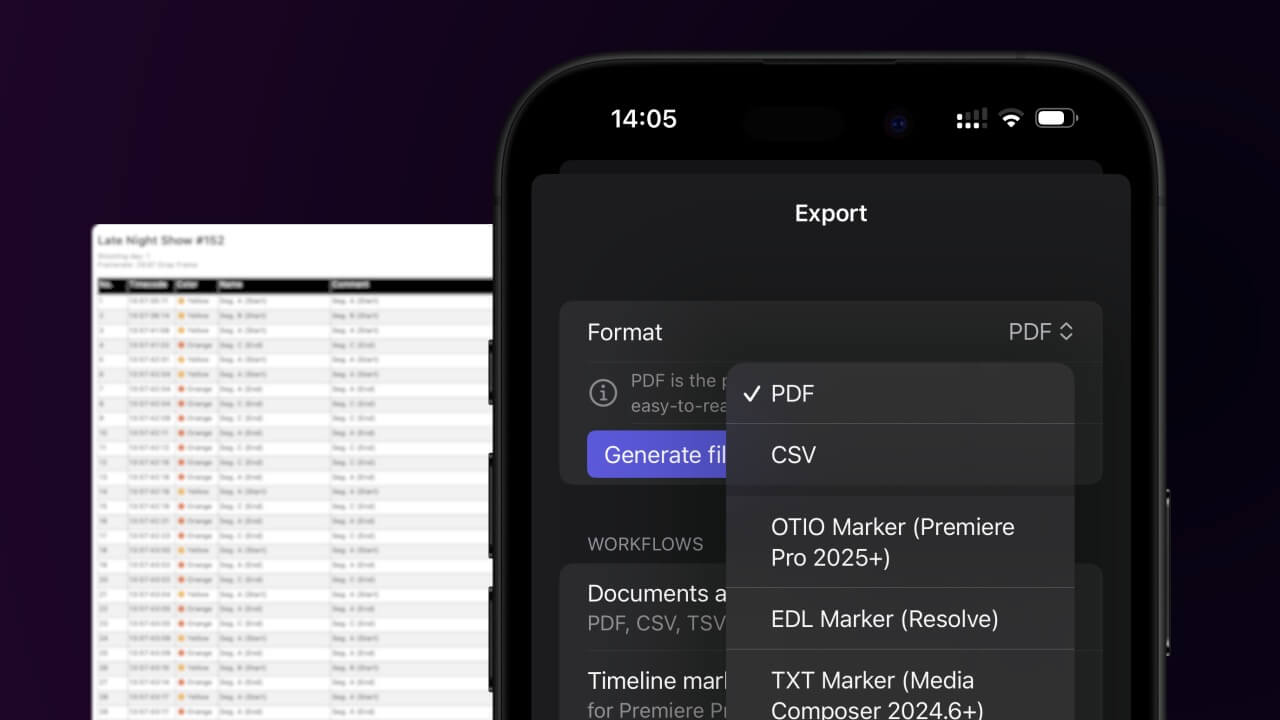
2. Use the "Marker átalakító" to convert the CSV file into a XLS file
Open the free Marker átalakító, select "CSV" and set "convert" to "XLS". Generate and download the file. Ha problémája van a fájl konvertálásával, forduljon ingyenes ügyfélszolgálatunkhoz.
Ensure that the CSV file contains columns labelled "Timecode In", "Name" and "Comment". Otherwise, it will not work. You can also add columns for 'Colour' and 'Timecode Out'.
🚀 Kész
Egyelőre ennyi! Ha hasznosnak találta ezt az útmutatót, kérjük, ossza meg, hogy támogasson minket. Ha van javaslata, hogyan javíthatnánk a munkafolyamaton, kérjük, jelezze nekünk!